Chat Workflow
The Chat Workflow is like AI Agent engine structure. Build any type of AI Agent in just three steps: LLM models, knowledge, and instruction. Then anyone can build a powerful websearch AI Agent for their own needs.
Before building your Agent, prepare Agent purpose and three core pieces: NLU/LLM models, Instruction prompt, and Knowledge web search URLs. These form the pre-build architecture for Reliable performance.
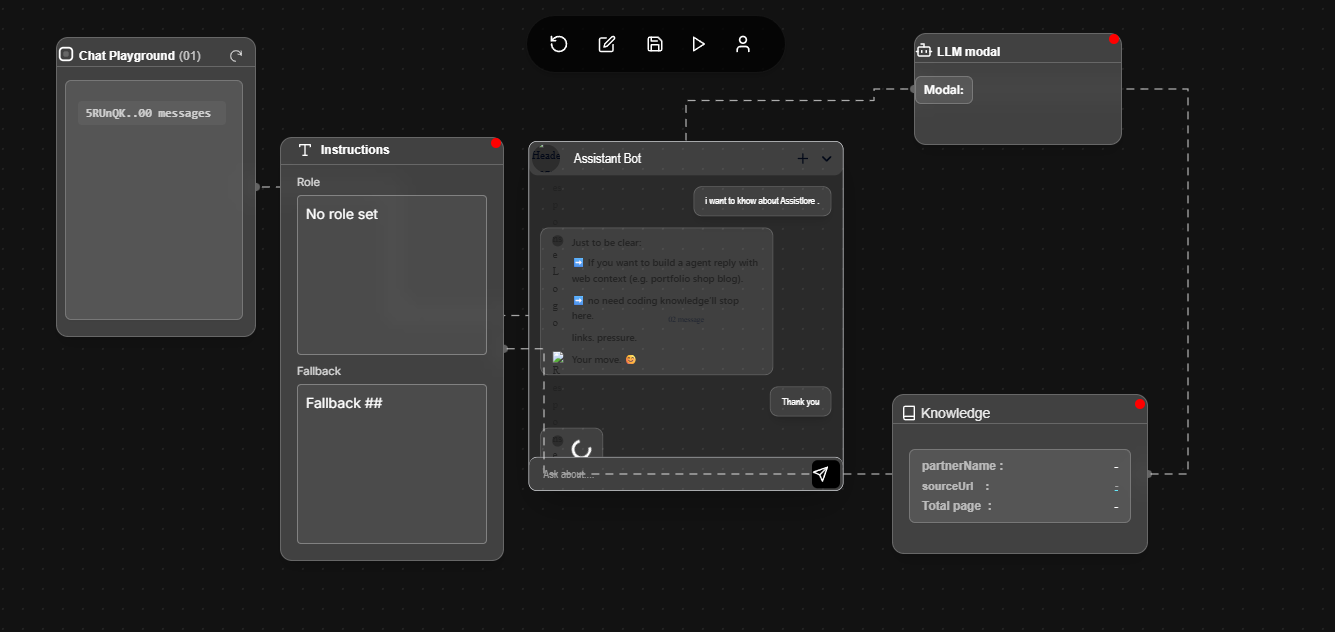
NLU / LLM
Choose and configure the language model and NLU componChoose your favorite natural language understanding (NLU/LLM) models. Click + icon on right top corner of NLU flow card to choose your favorite AI models.
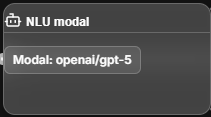
AI Models
AssistLore gives you freedom to choose any AI models. The AI model is heart of the agent. It decides how your AI system thinks and learns and talks. Each model offers different variants of creativity, perception, and ability. You can choose the best model match for your project.
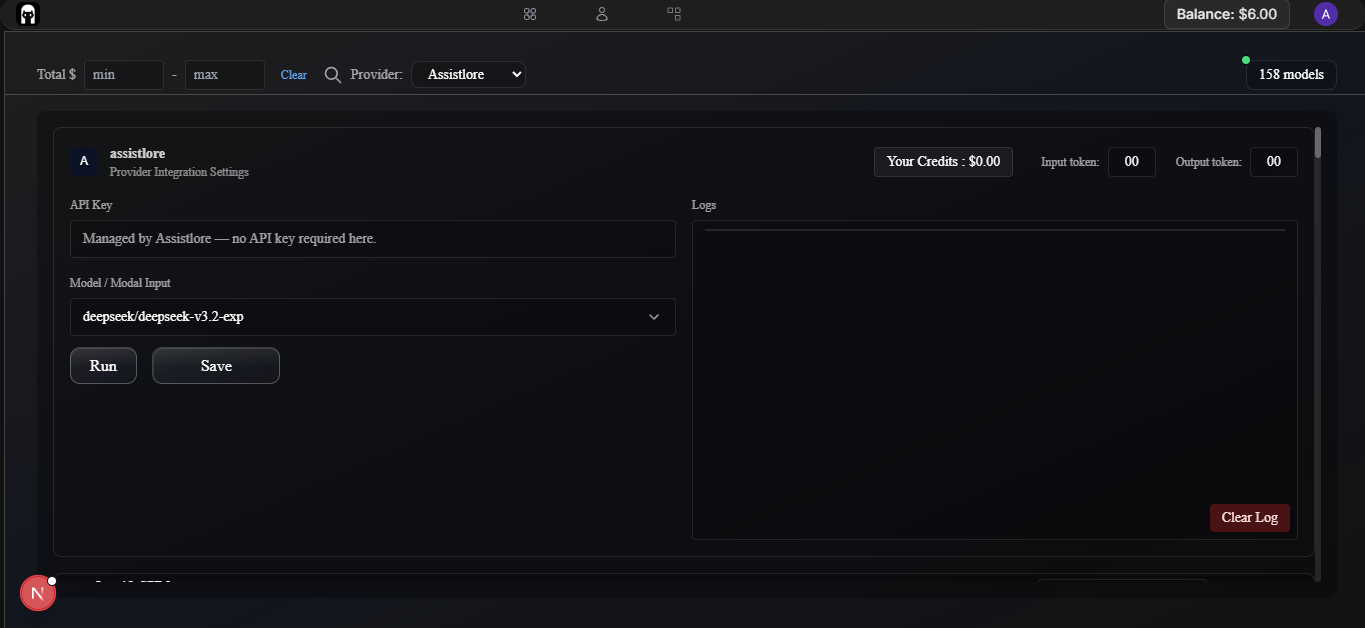
Instruction Prompt
The Instruction section defines how your AI agent communicates, behavesor, and expresses personality. Craft custom prompts to shape how your agent talks to customers, provides answers, and creates a satisfying, human-like experience.
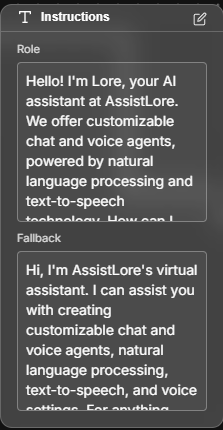
Instruction setup
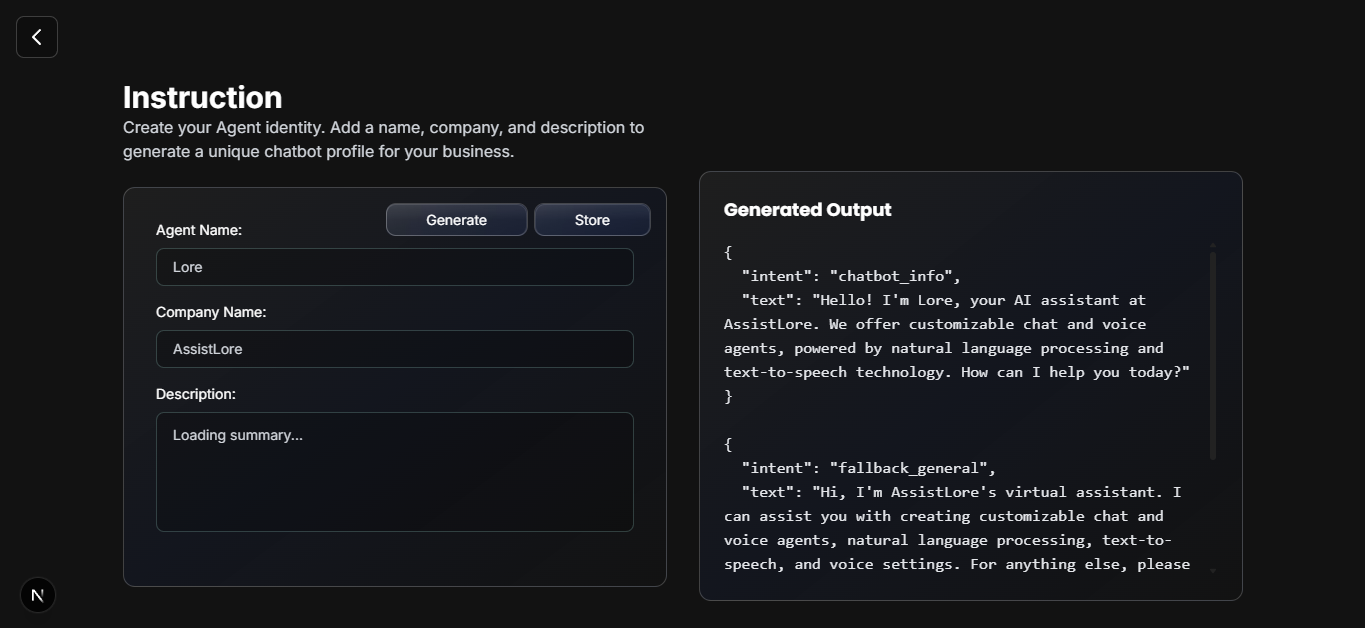
Click the “Edit” icon at the top-right corner of the Instruction flow card to open the instruction setup page. make sure your Agent Name, Company Name, and Description are correct. Assistlore uses external AI models to generate chatbot information and fallback prompts based on this data
- Agent name:Give your agent a unique name that represents its purpose and identity. You can update the agent name anytime later as your project evolves.
- Company Name:Enter your company or brand name that your AI agent represents. This helps personalize your agent’s responses for your customers. You can change or update it anytime later.
- Description:Make sure your company, product, or service description is correct. If not, you can correct or update it anytime. Assistlore’s external AI uses your website description to generate accurate fallback prompts and improve how your agent responds to unnecessary queries, unlisted services or products, and illegal or unrelated requests.
Knowledge
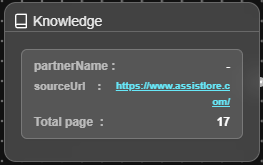
Your AI Agent needs knowledge to answer questions accurately. AssistLore allows you to store your website’s public URLs so your agent can learn from your content.
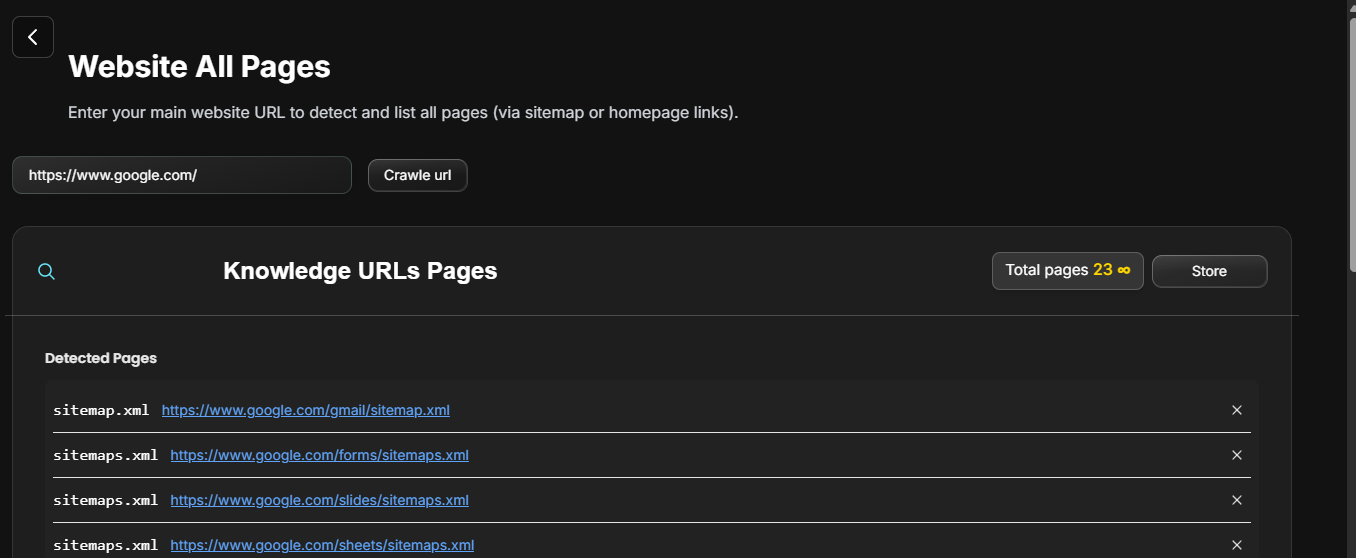
To add or update knowledge, open the Knowledge Flow card and click the Edit icon in the top-right corner. This will open the Website All URLs page, where all detected URLs will appear.
🌐 How to Store Knowledge URLs
Follow these simple steps to store your website’s knowledge:
- Enter Your Website URL: Make sure your URL is already loaded in the Website URL input bar. If it’s empty, simply type the website URL for which you want to create the agent.
https://yourwebsite.com - Click the “Crawl URL” Button: When you press Crawl URL, AssistLore automatically:
- Fetches your complete sitemap
- Reads your sitemap.xml
- Detects all valid public pages
- Shows every page inside the Detected Pages box
No manual work. No copy-paste. Everything happens automatically.
- Click “Store” to Save Knowledge: After reviewing all URLs:
- Keep public pages
- Remove private pages
- Click Store and accept AssistLore Terms & Policies
Done — your agent’s knowledge is 99% complete!
⚠️ Important Note About Privacy
AssistLore Agents can read any page that you store in the Knowledge section. If a page contains private, restricted, or confidential content → remove that URL. Keep only public pages that you want your AI to learn from. You have full control—just remove the URLs you don’t want the agent to access. Your agent will only learn from the URLs you store.
Your AI is now ready to answer questions using:
- Your website content
- Real-time data
- Web search (if enabled) (See attachments above for file contents)