Voice Workflow
The Voice Workflow works just like the Chat Workflow. Both follow the same AI Agent Engine Structure, making it simple to build voice-enabled agents for any website.
With AssistLore, you can create a complete AI Voice Agent in just three steps: Text to speech models, Instruction prompt, and Knowledge web search URLs. Anyone can build a powerful voice-driven, real-time websearch AI Agent for their own website in minutes.
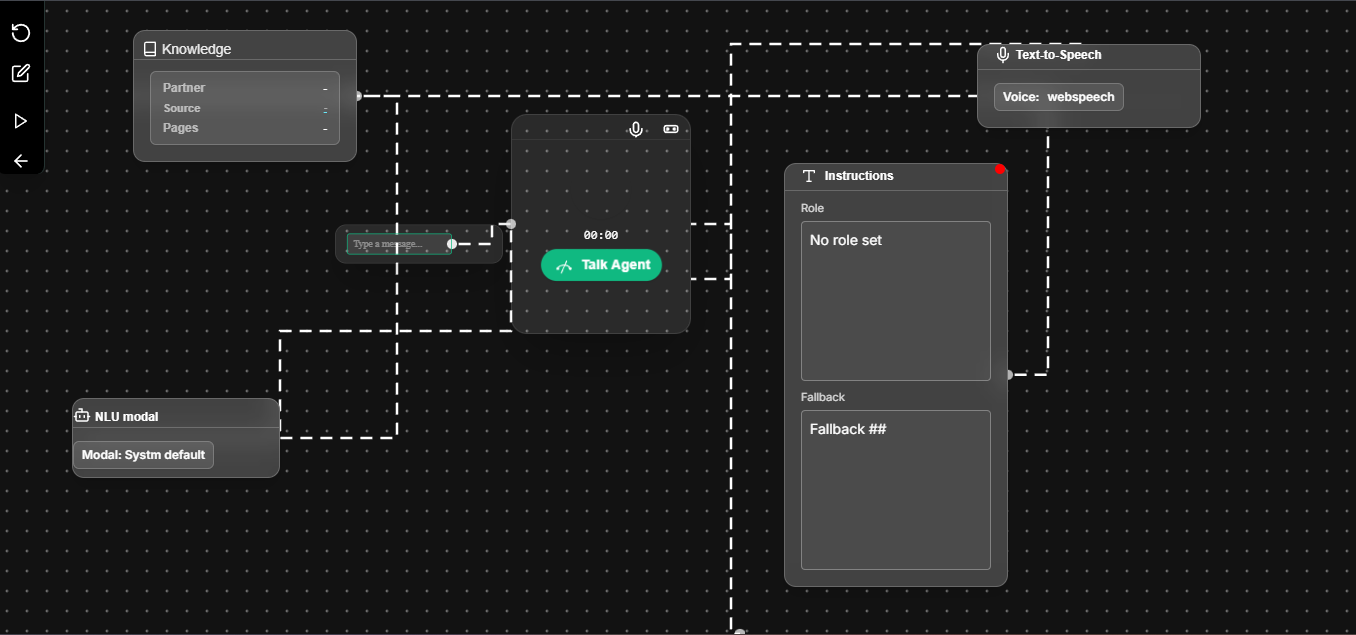
Text to speech
TTS makes your agent speak naturally. Click the + icon inside the draggable Text-to-Speech flow card. This will open the TTS selection and configuration page.

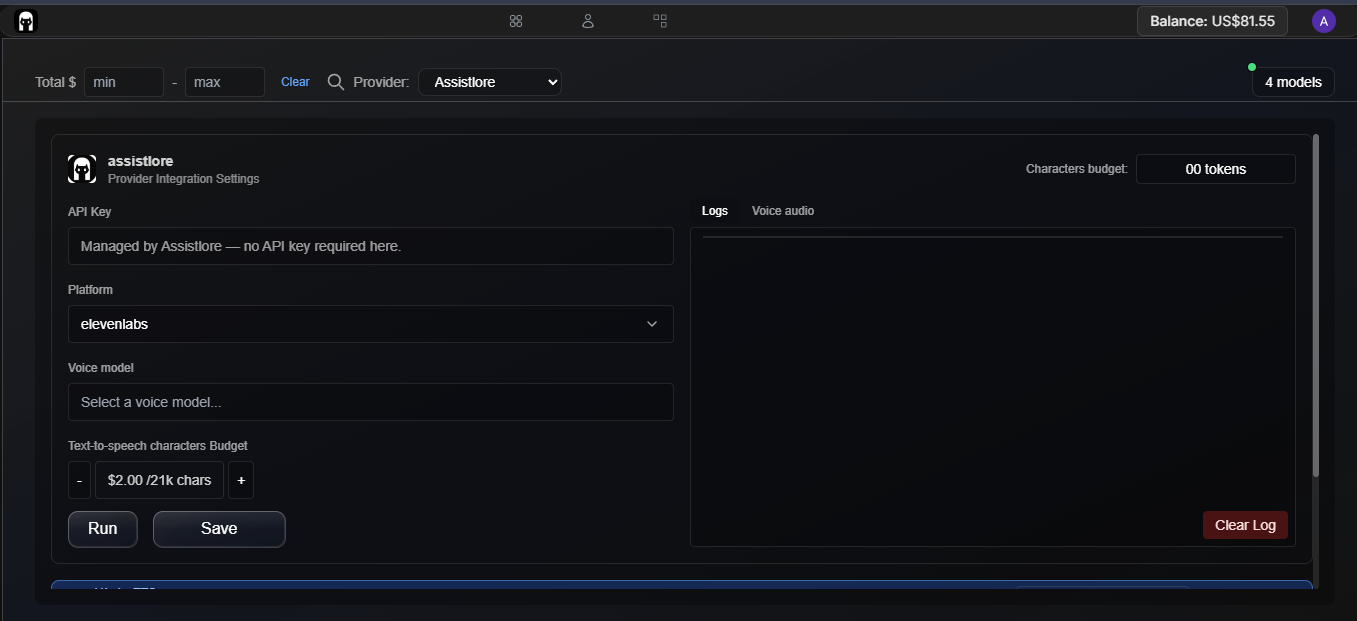
Text-to-Speech Selection
On this page, you can choose your preferred TTS platform and voice model.
- Click the Platform input bar.
- It will automatically scroll down and show you the full list of available TTS platforms and models.
- Select a provider for example, ElevenLabs.
- Choose your desired voice model (e.g., Flash v2.5, Multilingual v2).
- Pick the Voice ID you want your Voice Agent to speak in.
- Set your Characters Budget.
- Finally, click Save, then read and accept the AssistLore Terms & Policy if you agree.
After saving, your voice settings are applied instantly no extra setup required.
⚠️ Important Note
AssistLore does not provide API keys and does not require users to add any API keys. All platform API keys are securely managed and controlled in the AssistLore backend. You only select the platform and voice you want AssistLore handles the rest.
NLU
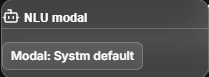
AssistLore uses a default NLU model for all Voice AI Agents. This model is pre-configured and optimized specifically for voice conversations, so you don’t need to select or change anything. The NLU engine automatically interprets what the user says, understands the meaning, and converts it into structured intent for your agent. Since it is built into the Voice Workflow, users cannot modify or replace it at this time. Everything works out of the box. no setup required.
Speech to text
AssistLore also uses a default Speech-to-Text model to convert the user’s voice into accurate text during conversations. This STT system is already connected to the Voice Engine, so you don’t need to configure any provider, model, or API key.
The built-in STT model ensures:
- Fast voice transcription
- High accuracy
- Seamless interaction between voice input and the NLU system
Just like NLU, Speech-to-Text cannot be changed manually. It is fully managed by AssistLore to keep the voice workflow simple, stable, and high-performing.
Instruction Prompt
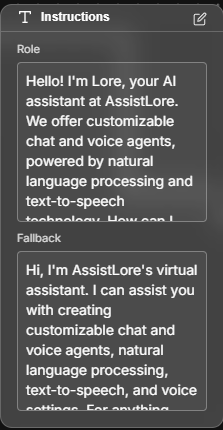
The Instruction section defines how your AI agent communicates, behavesor, and expresses personality. Craft custom prompts to shape how your agent talks to customers, provides answers, and creates a satisfying, human-like experience.
Instruction setup
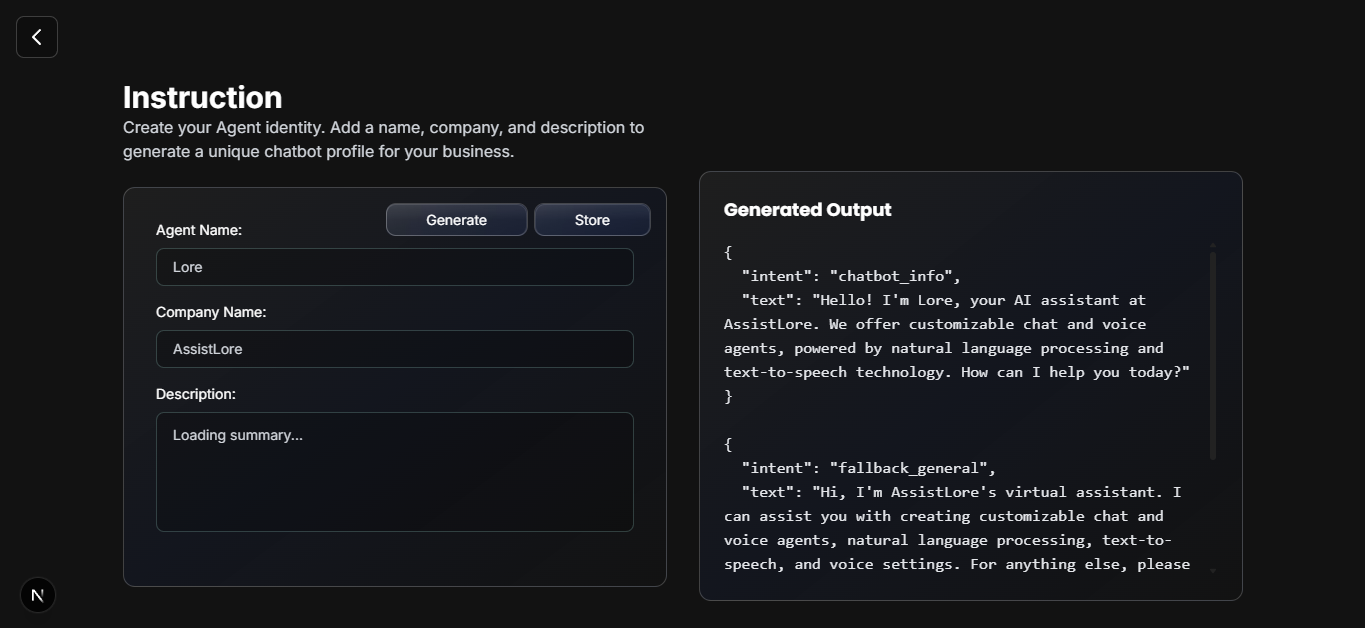
Click the “Edit” icon at the top-right corner of the Instruction flow card to open the instruction setup page. make sure your Agent Name, Company Name, and Description are correct. Assistlore uses external AI models to generate chatbot information and fallback prompts based on this data
- Agent name:Give your agent a unique name that represents its purpose and identity. You can update the agent name anytime later as your project evolves.
- Company Name:Enter your company or brand name that your AI agent represents. This helps personalize your agent’s responses for your customers. You can change or update it anytime later.
- Description:Make sure your company, product, or service description is correct. If not, you can correct or update it anytime. Assistlore’s external AI uses your website description to generate accurate fallback prompts and improve how your agent responds to unnecessary queries, unlisted services or products, and illegal or unrelated requests.
Knowledge
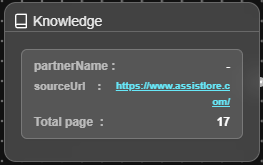
Your AI Agent needs knowledge to answer questions accurately. AssistLore allows you to store your website’s public URLs so your agent can learn from your content.
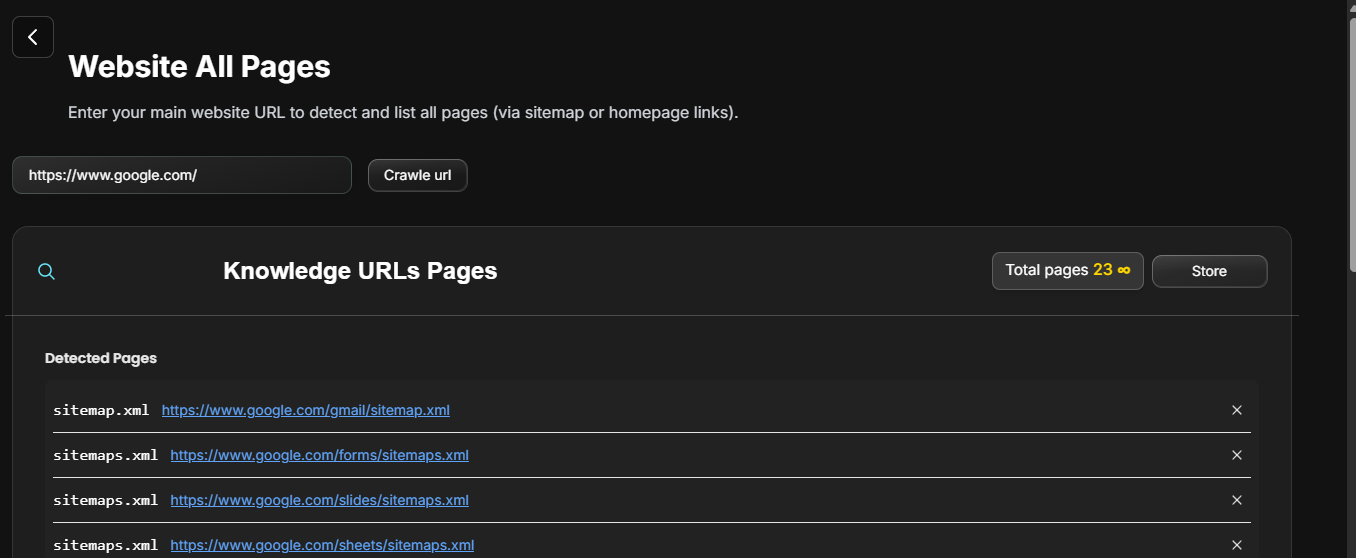
To add or update knowledge, open the Knowledge Flow card and click the Edit icon in the top-right corner. This will open the Website All URLs page, where all detected URLs will appear.
🌐 How to Store Knowledge URLs
Follow these simple steps to store your website’s knowledge:
- Enter Your Website URL: Make sure your URL is already loaded in the Website URL input bar. If it’s empty, simply type the website URL for which you want to create the agent.
https://yourwebsite.com - Click the “Crawl URL” Button: When you press Crawl URL, AssistLore automatically:
- Fetches your complete sitemap
- Reads your sitemap.xml
- Detects all valid public pages
- Shows every page inside the Detected Pages box
No manual work. No copy-paste. Everything happens automatically.
- Click “Store” to Save Knowledge: After reviewing all URLs:
- Keep public pages
- Remove private pages
- Click Store and accept AssistLore Terms & Policies
Done — your agent’s knowledge is 99% complete!
⚠️ Important Note About Privacy
AssistLore Agents can read any page that you store in the Knowledge section. If a page contains private, restricted, or confidential content → remove that URL. Keep only public pages that you want your AI to learn from. You have full control—just remove the URLs you don’t want the agent to access. Your agent will only learn from the URLs you store.
Your AI is now ready to answer questions using:
- Your website content
- Real-time data
- Web search (if enabled) (See attachments above for file contents)